How to generate EA form using Carbonate ?
In Malaysia, the EA Form is an annual statement provided by employers to employees, summarizing their total earnings, tax deductions (PCB/MTD), benefits, and other remuneration for a given year. It is issued in accordance with requirements by the Inland Revenue Board of Malaysia and serves as a key document for employees when preparing and submitting their personal income tax returns. The EA Form ensures transparency and accuracy in reporting income, helping both employers and employees comply with tax regulations. Carbonate HR software simplifies this process by automating payroll calculations and generating EA Forms efficiently, reducing manual errors and ensuring timely compliance.
Steps to Generate EA Form in Carbonate HR Software :-
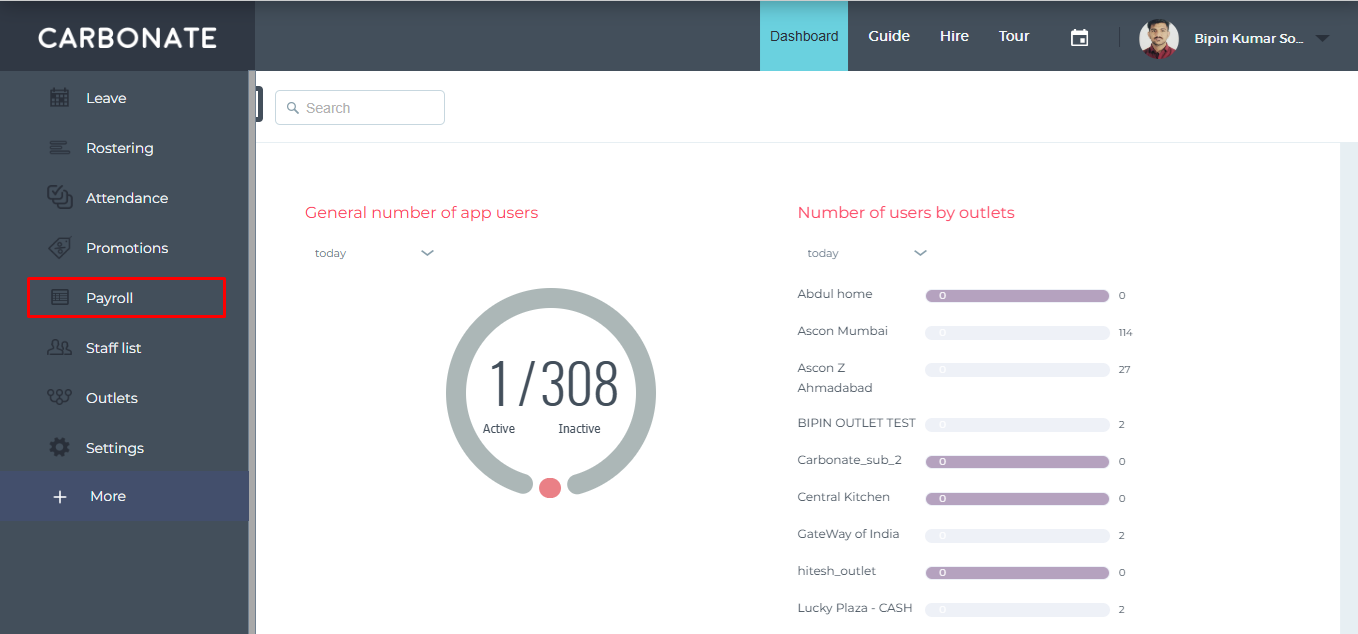
Go to the Payroll module.
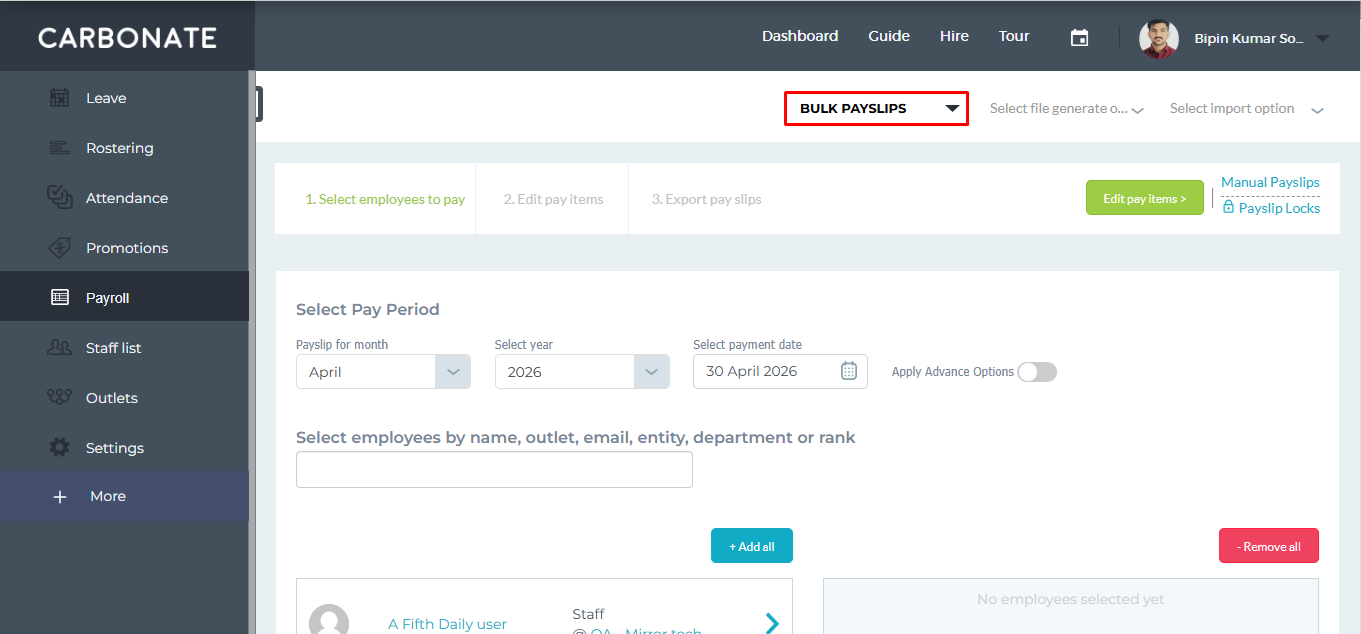
Click on Bulk Payslip.
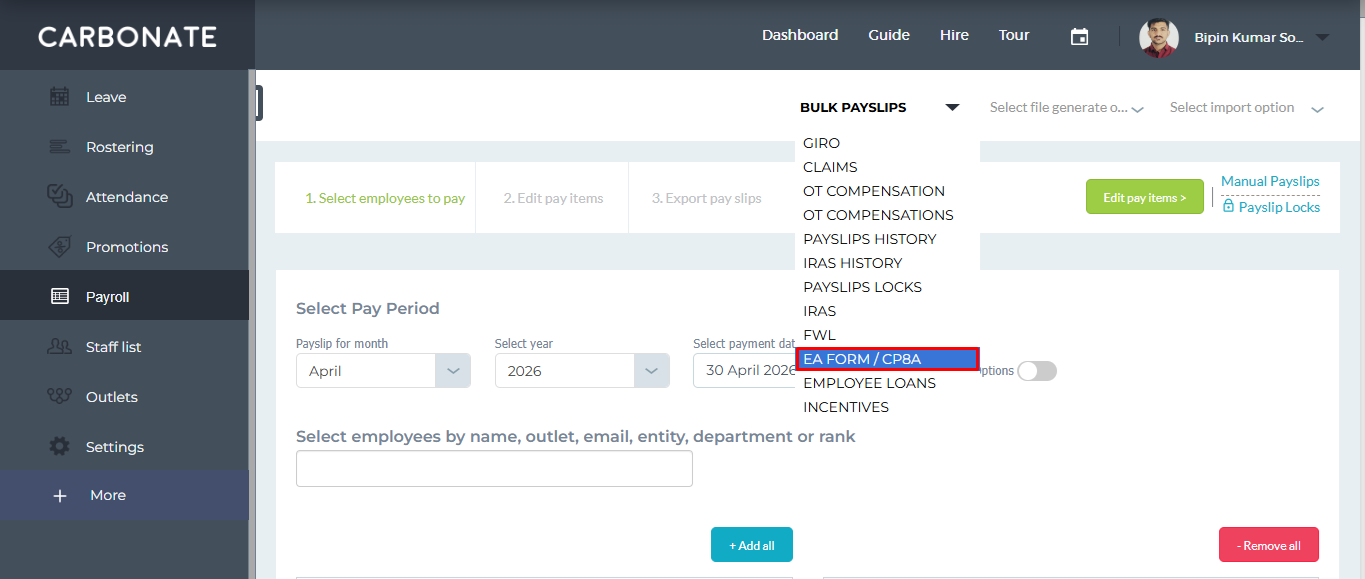
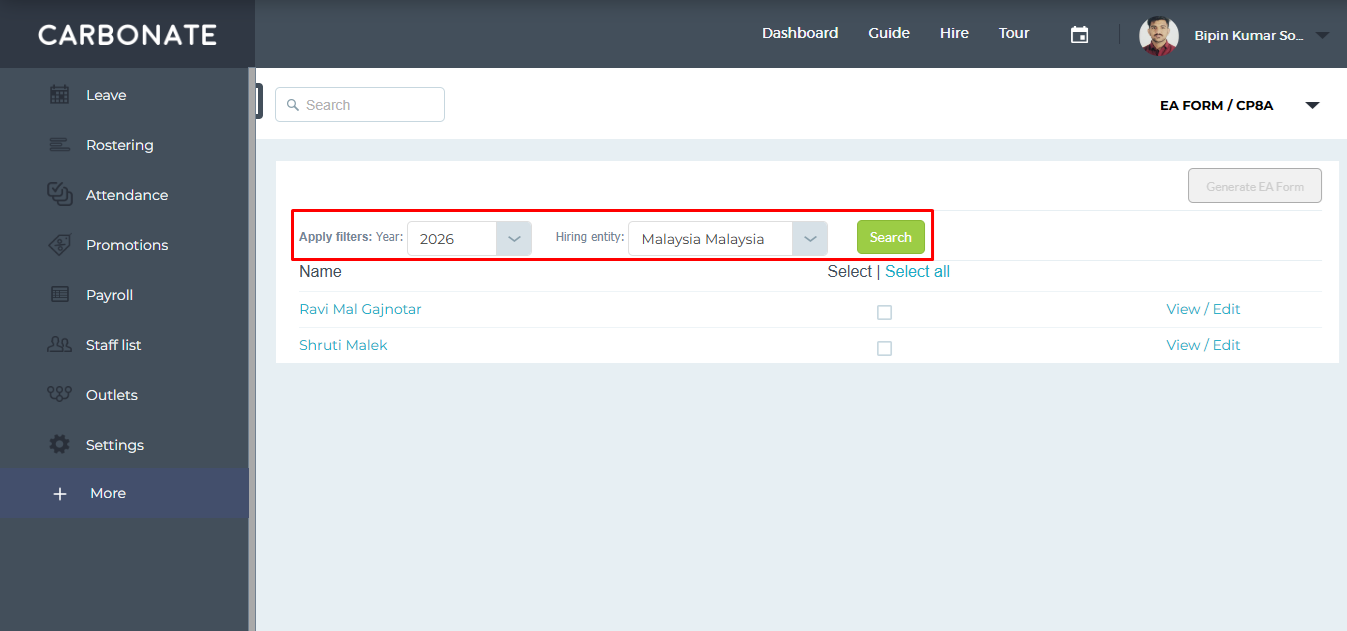
Select the EA FORM / CP8A option from the dropdown.
Apply filters by selecting the Year and Hiring Entity as required and Click on the Search button.
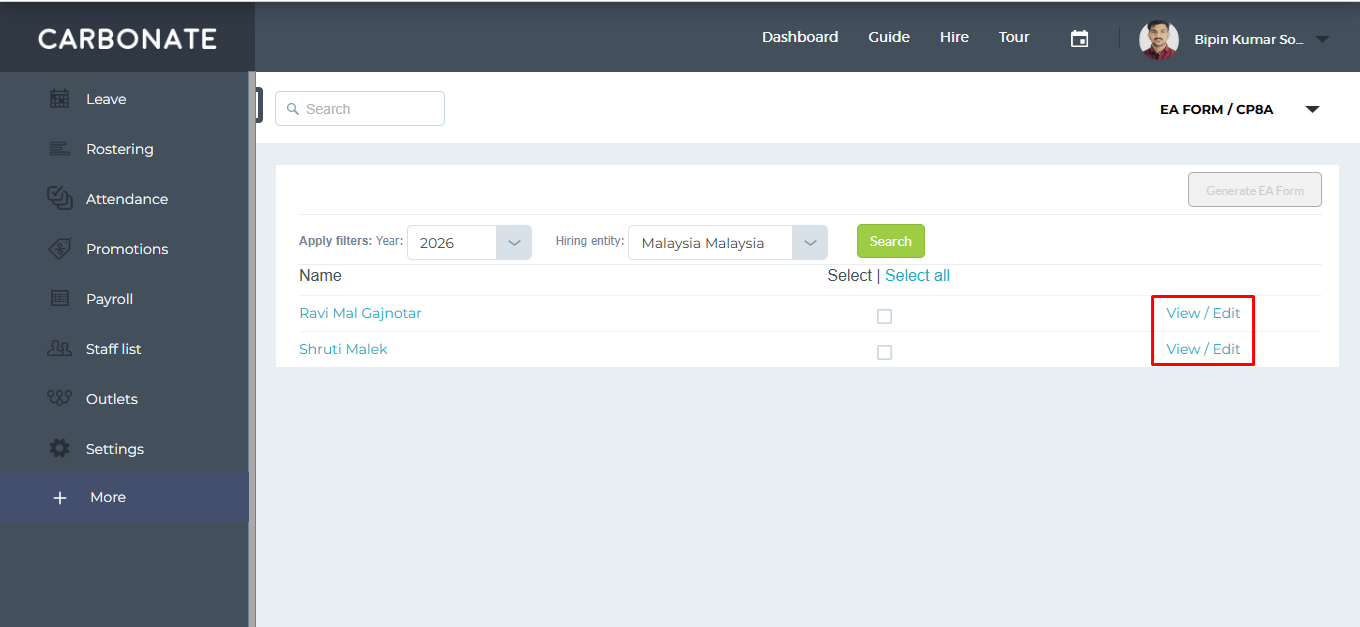
Click on the View/Edit button.
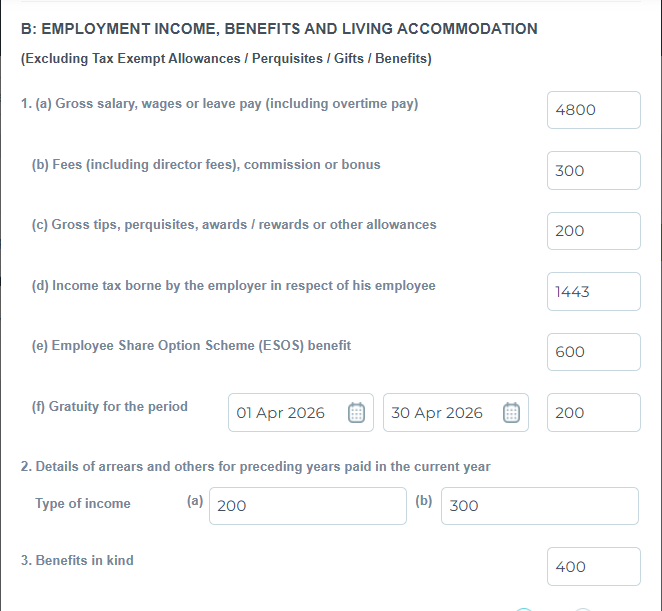
Based on the user profile data and available payslips for the selected year, all information will be automatically calculated by system.
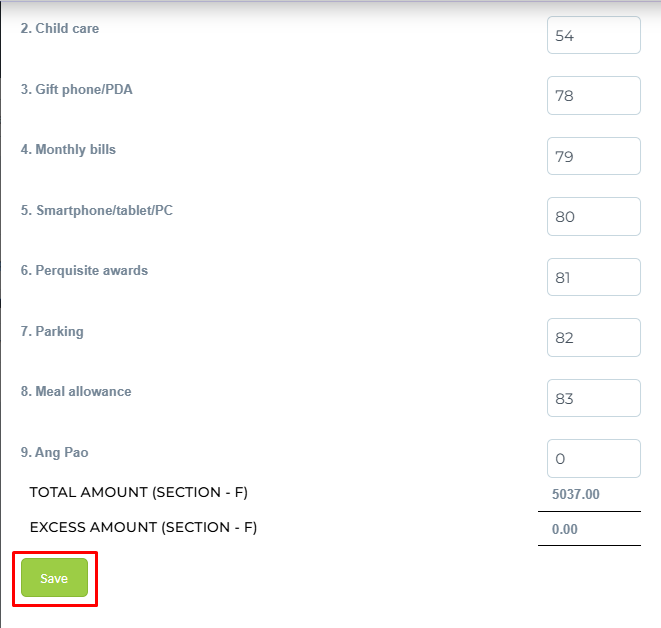
If any updates are required, edit the details manually and click on the Save button.
Note: Once changes are saved, the original auto-calculated data cannot be restored.
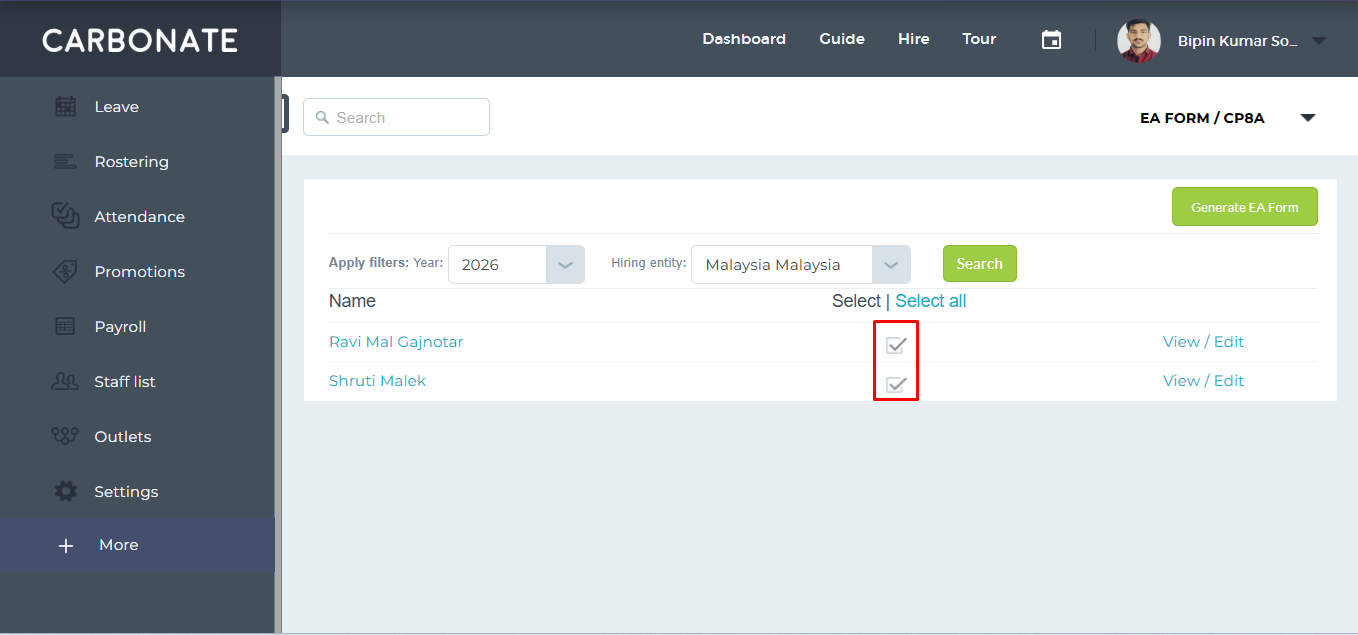
Select the users for whom you want to generate the EA Form.
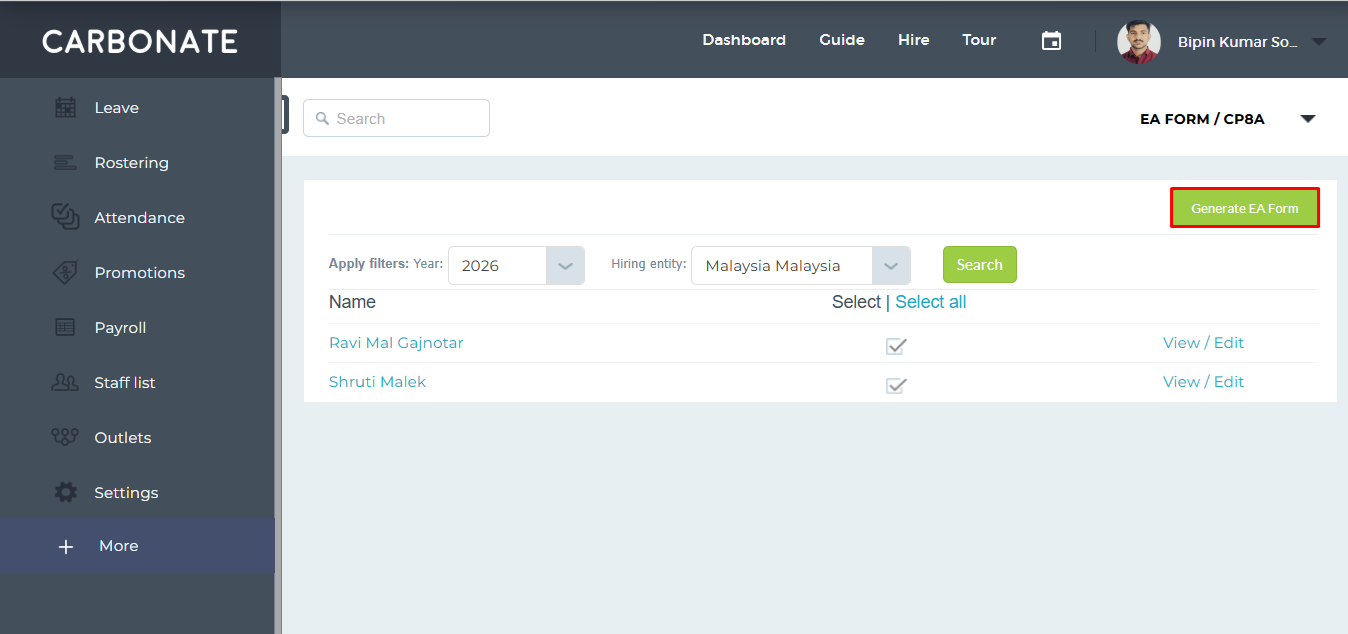
Click on the Generate EA Form button to proceed.
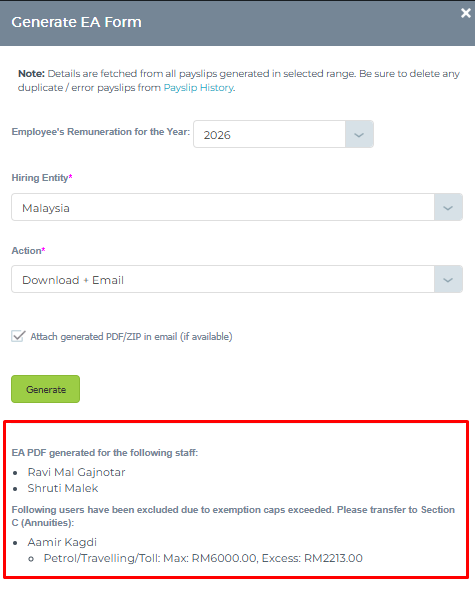
Based on the applied filters, the Employee’s Remuneration for the Year and Hiring Entity details will be auto-filled.
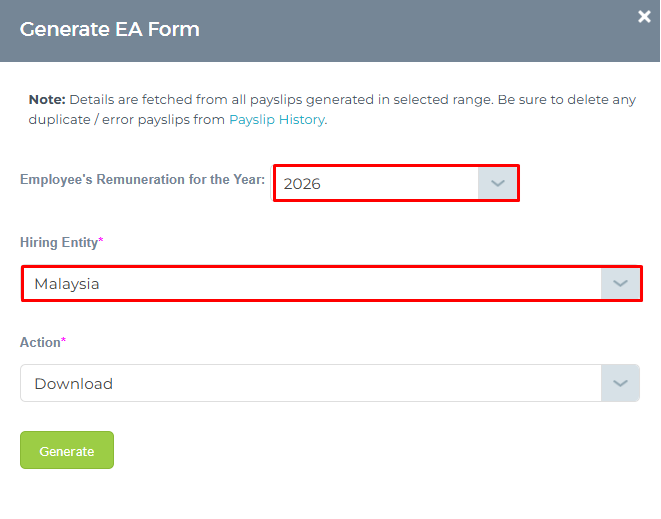
Select the required Action:
- Download – Generates the EA Form in PDF format.
- Email – Sends the information via email.
- (Untick the checkbox if you do not want to attach the generated PDF/ZIP in the email.)
- Download + Email – Downloads the EA Form and also sends information regarding it via email.
- (Untick the checkbox if you do not want to attach the generated PDF/ZIP in the email.)
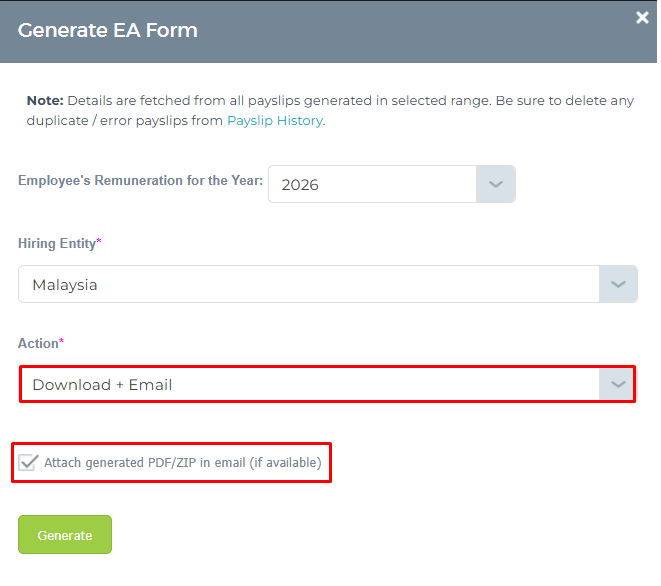
After selecting the action, click on the Generate button.
Note:- Once the EA Forms are generated, a notification will be displayed showing which users have been included and excluded in the process.